

Setup
1. Register an app in Azure Entra
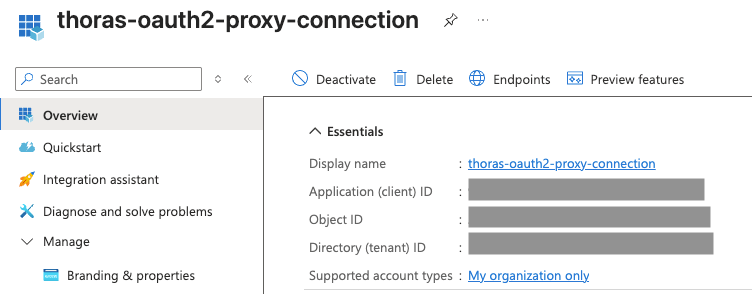
- In the Azure Portal, go to Microsoft Entra ID -> App registrations -> New registration.
- For Supported account types, pick Accounts in this organizational
directory only (single tenant). Multi-tenant works but needs extra
configuration (see the
issuerURLfield note below). - Set a Redirect URI of type “Web”:
https://thoras.yourcompany.com/oauth2/callback. - Note the Application (client) ID and Directory (tenant) ID. You’ll need both.
- Under Certificates & secrets, create a new client secret and copy its value immediately (it’s only shown once).
- API permissions need no changes. The default
Microsoft Graph User.Readpermission is enough for sign-in; oauth2-proxy requests theopenid email profilescopes at sign-in, and users consent to them on first login.
2. Create the Kubernetes secret
The sidecar needs three values, read from a Kubernetes Secret you manage rather than inlined invalues.yaml. The chart never generates these:
Generate the cookie secret with:
kubectl
when using --from-literal):
3. Switch the chart into OIDC mode
Invalues.yaml, set thorasDashboard.auth.mode: oidc and fill in the OIDC
block:
Field notes
provider:entra-idselects Entra-specific handling in oauth2-proxy (group overage via Microsoft Graph, multi-tenant issuer checks).oidcalso works against Entra but drops those Entra-specific features.issuerURL: points at your Entra tenant’s v2.0 OIDC endpoint. Replace<tenant-id>with your Directory (tenant) ID. For a multi-tenant app, usehttps://login.microsoftonline.com/common/v2.0and add--insecure-oidc-skip-issuer-verificationtothorasDashboard.auth.extraArgs(oauth2-proxy will otherwise reject the per-tenant issuer returned in tokens). See the Entra ID provider docs for the full multi-tenant setup, includingentra-id-allowed-tenant.redirectURL: must be the real external hostname of the dashboard, over HTTPS, and must exactly match a redirect URI registered on the Entra app registration.emailDomains: restricts login to your org’s email domain(s). Use["*"]to allow any authenticated user.existingSecret.secretName: points at the Secret you created in step 2.
4. Deploy and verify
helm upgradethe release with the updatedvalues.yaml.- Confirm the dashboard pod comes up healthy, and check the sidecar logs if
something goes wrong:
- Visit the dashboard URL. You should be redirected to your identity provider’s login page, and land back on the dashboard after authenticating.
- If the redirect fails or loops, double-check that
redirectURLexactly matches a redirect URI registered on your identity provider’s app, and thatissuerURLis correct.
Exposing the sidecar externally
The chart’s built-in oauth2-proxy sidecar owns the dashboard’scontainerPort,
so the existing thorasDashboard Service already routes external traffic
through the auth check. No service.targetPort override is needed.
Expose the Service using whichever mechanism the chart already supports:
Ingress
ingressClassName/parentRefs to match your cluster’s actual Ingress
controller or Gateway, and terminate TLS there (or upstream at a
cert-manager-issued Certificate bound to it). Once DNS for
thoras.yourcompany.com resolves and a valid TLS cert is issued, visiting the
dashboard URL should trigger the login flow described above.