> ## Documentation Index
> Fetch the complete documentation index at: https://docs.thoras.ai/llms.txt
> Use this file to discover all available pages before exploring further.
# Azure Entra Authentication with oauth2-proxy
> How to front the Thoras dashboard with oauth2-proxy so that users must authenticate against Azure Entra ID (formerly Azure AD) before reaching the dashboard.
export const DeployAndVerify = ({idpName}) => <>;
This guide covers the Entra-specific steps for fronting the Thoras dashboard
with oauth2-proxy. See the
[oauth2-proxy overview](/guides/oauth2-proxy) for how the sidecar architecture
works in general.
## Setup
### 1. Register an app in Azure Entra
1. In the Azure Portal, go to **Entra ID -> App registrations -> New
registration**.
2. Set a **Redirect URI** of type "Web":
`https://thoras.yourcompany.com/oauth2/callback`.
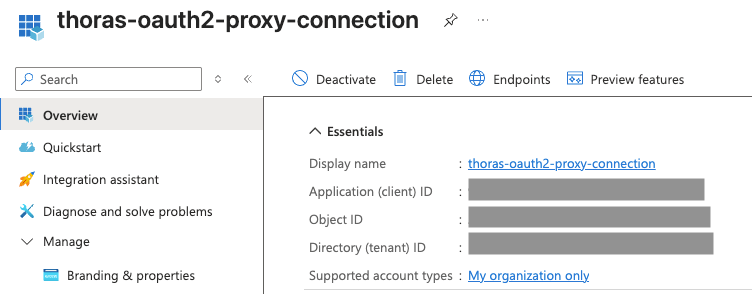
3. Note the **Application (client) ID** and **Directory (tenant) ID**. You'll
need both.
4. Under **Certificates & secrets**, create a new client secret and copy its
value immediately (it's only shown once).
5. Under **API permissions**, ensure `openid`, `email`, and `profile` delegated
permissions are present (these are granted by default for most app
registrations).
 See oauth2-proxy's own walkthrough of this same registration process:
[Microsoft Entra ID provider config](https://oauth2-proxy.github.io/oauth2-proxy/configuration/providers/ms_entra_id).
### 2. Create the Kubernetes secret
oauth2-proxy needs three secrets, referenced via `secretKeyRef` rather than
inlined in `values.yaml`:
| Key | Purpose |
| --------------- | -------------------------------------------------------------- |
| `client-id` | The application's client ID |
| `client-secret` | The application's client secret |
| `cookie-secret` | A random value oauth2-proxy uses to encrypt its session cookie |
Generate the cookie secret with:
```bash theme={null}
openssl rand -base64 32 | head -c 32 | base64
```
Create the secret (values below are base64-encoded automatically by `kubectl`
when using `--from-literal`):
```bash theme={null}
kubectl create secret generic oauth2-proxy-secrets \
--namespace thoras \
--from-literal=client-id="" \
--from-literal=client-secret="" \
--from-literal=cookie-secret="$(openssl rand -base64 32 | head -c 32 | base64)"
```
### 3. Configure the oauth2-proxy sidecar in `values.yaml`
Add an `extraContainers` entry under `thorasDashboard`:
```yaml theme={null}
thorasDashboard:
extraContainers:
- name: oauth2-proxy
image: quay.io/oauth2-proxy/oauth2-proxy:v7.15.2
args:
- --provider=oidc
- --oidc-issuer-url=https://login.microsoftonline.com//v2.0
- --http-address=0.0.0.0:4180
- --upstream=http://127.0.0.1:8080
- --email-domain=yourcompany.com
- --cookie-secure=true
- --reverse-proxy=true
- --redirect-url=https://thoras.yourcompany.com/oauth2/callback
- --skip-provider-button=true
- --insecure-oidc-allow-unverified-email=false
ports:
- name: proxy
containerPort: 4180
env:
- name: OAUTH2_PROXY_CLIENT_ID
valueFrom:
secretKeyRef:
name: oauth2-proxy-secrets
key: client-id
- name: OAUTH2_PROXY_CLIENT_SECRET
valueFrom:
secretKeyRef:
name: oauth2-proxy-secrets
key: client-secret
- name: OAUTH2_PROXY_COOKIE_SECRET
valueFrom:
secretKeyRef:
name: oauth2-proxy-secrets
key: cookie-secret
readinessProbe:
httpGet:
path: /ping
port: 4180
initialDelaySeconds: 5
periodSeconds: 10
resources:
requests:
cpu: 25m
memory: 32Mi
limits:
cpu: 100m
memory: 64Mi
```
#### Key flags explained
Full flag reference:
[oauth2-proxy configuration options](https://oauth2-proxy.github.io/oauth2-proxy/configuration/overview).
* `--oidc-issuer-url` — points to your Entra tenant's v2.0 OIDC endpoint.
Replace `` with your Directory (tenant) ID. See the
[Entra ID provider docs](https://oauth2-proxy.github.io/oauth2-proxy/configuration/providers/ms_entra_id)
for tenant-specific vs. multi-tenant issuer URL variants.
* `--upstream` — the dashboard's local container port that oauth2-proxy proxies
to after successful auth. This stays plain HTTP over loopback (`127.0.0.1`)
because it's a same-pod, container-to-container hop. TLS belongs on the
external-facing side (`--cookie-secure`, ingress TLS), not here. See
[upstream configuration](https://oauth2-proxy.github.io/oauth2-proxy/configuration/overview/#upstreams-configuration).
* `--email-domain=yourcompany.com` — restricts login to your org's email
domain(s). Replace with your actual domain, or pass the flag multiple times
for more than one domain.
* `--cookie-secure=true` — only send the session cookie over HTTPS. Requires the
dashboard to actually be served over HTTPS end-to-end (see the ingress note
below).
* `--reverse-proxy=true` — trust `X-Forwarded-*` headers (notably
`X-Forwarded-Proto`) from the Ingress/Gateway that terminates TLS. Without
this, oauth2-proxy sees plain HTTP from the proxy and — with
`--cookie-secure=true` — refuses to set the session cookie, which breaks
login.
* `--redirect-url=https://thoras.yourcompany.com/oauth2/callback` — must be the
real external hostname of the dashboard, over HTTPS, and must exactly match a
redirect URI registered on the Entra app registration.
* `--skip-provider-button=true` — since there's only one provider (Entra), skip
the "choose a provider" landing page and redirect straight to login.
### 4. Deploy and verify
## Exposing the sidecar externally
Point the dashboard's existing `Service` at the oauth2-proxy sidecar port
(`4180`) instead of the app's port (`8080`), so all traffic — however you
already expose the dashboard — is forced through the auth check:
```yaml theme={null}
thorasDashboard:
service:
targetPort: 4180
```
Then expose that `Service` using whichever the chart already supports:
**Ingress**
```yaml theme={null}
thorasDashboard:
ingress:
enabled: true
hosts:
- host: thoras.yourcompany.com
paths:
- path: /
pathType: Prefix
```
**Gateway API**
```yaml theme={null}
thorasDashboard:
gatewayAPI:
enabled: true
parentRefs:
- name: eg
sectionName: http
hostnames:
- thoras.yourcompany.com
```
Adjust `ingressClassName`/`parentRefs` to match your cluster's actual Ingress
controller or `Gateway`, and terminate TLS there (or upstream at a
cert-manager-issued `Certificate` bound to it). Once DNS for
`thoras.yourcompany.com` resolves and a valid TLS cert is issued, visiting the
dashboard URL should trigger the login flow described above.
## Further reading
* [oauth2-proxy documentation home](https://oauth2-proxy.github.io/oauth2-proxy/)
* [Microsoft Entra ID provider configuration](https://oauth2-proxy.github.io/oauth2-proxy/configuration/providers/ms_entra_id)
* [Configuration overview / full flag reference](https://oauth2-proxy.github.io/oauth2-proxy/configuration/overview)
* [Session storage options](https://oauth2-proxy.github.io/oauth2-proxy/configuration/session_storage)
* [TLS configuration](https://oauth2-proxy.github.io/oauth2-proxy/configuration/tls)
See oauth2-proxy's own walkthrough of this same registration process:
[Microsoft Entra ID provider config](https://oauth2-proxy.github.io/oauth2-proxy/configuration/providers/ms_entra_id).
### 2. Create the Kubernetes secret
oauth2-proxy needs three secrets, referenced via `secretKeyRef` rather than
inlined in `values.yaml`:
| Key | Purpose |
| --------------- | -------------------------------------------------------------- |
| `client-id` | The application's client ID |
| `client-secret` | The application's client secret |
| `cookie-secret` | A random value oauth2-proxy uses to encrypt its session cookie |
Generate the cookie secret with:
```bash theme={null}
openssl rand -base64 32 | head -c 32 | base64
```
Create the secret (values below are base64-encoded automatically by `kubectl`
when using `--from-literal`):
```bash theme={null}
kubectl create secret generic oauth2-proxy-secrets \
--namespace thoras \
--from-literal=client-id="" \
--from-literal=client-secret="" \
--from-literal=cookie-secret="$(openssl rand -base64 32 | head -c 32 | base64)"
```
### 3. Configure the oauth2-proxy sidecar in `values.yaml`
Add an `extraContainers` entry under `thorasDashboard`:
```yaml theme={null}
thorasDashboard:
extraContainers:
- name: oauth2-proxy
image: quay.io/oauth2-proxy/oauth2-proxy:v7.15.2
args:
- --provider=oidc
- --oidc-issuer-url=https://login.microsoftonline.com//v2.0
- --http-address=0.0.0.0:4180
- --upstream=http://127.0.0.1:8080
- --email-domain=yourcompany.com
- --cookie-secure=true
- --reverse-proxy=true
- --redirect-url=https://thoras.yourcompany.com/oauth2/callback
- --skip-provider-button=true
- --insecure-oidc-allow-unverified-email=false
ports:
- name: proxy
containerPort: 4180
env:
- name: OAUTH2_PROXY_CLIENT_ID
valueFrom:
secretKeyRef:
name: oauth2-proxy-secrets
key: client-id
- name: OAUTH2_PROXY_CLIENT_SECRET
valueFrom:
secretKeyRef:
name: oauth2-proxy-secrets
key: client-secret
- name: OAUTH2_PROXY_COOKIE_SECRET
valueFrom:
secretKeyRef:
name: oauth2-proxy-secrets
key: cookie-secret
readinessProbe:
httpGet:
path: /ping
port: 4180
initialDelaySeconds: 5
periodSeconds: 10
resources:
requests:
cpu: 25m
memory: 32Mi
limits:
cpu: 100m
memory: 64Mi
```
#### Key flags explained
Full flag reference:
[oauth2-proxy configuration options](https://oauth2-proxy.github.io/oauth2-proxy/configuration/overview).
* `--oidc-issuer-url` — points to your Entra tenant's v2.0 OIDC endpoint.
Replace `` with your Directory (tenant) ID. See the
[Entra ID provider docs](https://oauth2-proxy.github.io/oauth2-proxy/configuration/providers/ms_entra_id)
for tenant-specific vs. multi-tenant issuer URL variants.
* `--upstream` — the dashboard's local container port that oauth2-proxy proxies
to after successful auth. This stays plain HTTP over loopback (`127.0.0.1`)
because it's a same-pod, container-to-container hop. TLS belongs on the
external-facing side (`--cookie-secure`, ingress TLS), not here. See
[upstream configuration](https://oauth2-proxy.github.io/oauth2-proxy/configuration/overview/#upstreams-configuration).
* `--email-domain=yourcompany.com` — restricts login to your org's email
domain(s). Replace with your actual domain, or pass the flag multiple times
for more than one domain.
* `--cookie-secure=true` — only send the session cookie over HTTPS. Requires the
dashboard to actually be served over HTTPS end-to-end (see the ingress note
below).
* `--reverse-proxy=true` — trust `X-Forwarded-*` headers (notably
`X-Forwarded-Proto`) from the Ingress/Gateway that terminates TLS. Without
this, oauth2-proxy sees plain HTTP from the proxy and — with
`--cookie-secure=true` — refuses to set the session cookie, which breaks
login.
* `--redirect-url=https://thoras.yourcompany.com/oauth2/callback` — must be the
real external hostname of the dashboard, over HTTPS, and must exactly match a
redirect URI registered on the Entra app registration.
* `--skip-provider-button=true` — since there's only one provider (Entra), skip
the "choose a provider" landing page and redirect straight to login.
### 4. Deploy and verify
## Exposing the sidecar externally
Point the dashboard's existing `Service` at the oauth2-proxy sidecar port
(`4180`) instead of the app's port (`8080`), so all traffic — however you
already expose the dashboard — is forced through the auth check:
```yaml theme={null}
thorasDashboard:
service:
targetPort: 4180
```
Then expose that `Service` using whichever the chart already supports:
**Ingress**
```yaml theme={null}
thorasDashboard:
ingress:
enabled: true
hosts:
- host: thoras.yourcompany.com
paths:
- path: /
pathType: Prefix
```
**Gateway API**
```yaml theme={null}
thorasDashboard:
gatewayAPI:
enabled: true
parentRefs:
- name: eg
sectionName: http
hostnames:
- thoras.yourcompany.com
```
Adjust `ingressClassName`/`parentRefs` to match your cluster's actual Ingress
controller or `Gateway`, and terminate TLS there (or upstream at a
cert-manager-issued `Certificate` bound to it). Once DNS for
`thoras.yourcompany.com` resolves and a valid TLS cert is issued, visiting the
dashboard URL should trigger the login flow described above.
## Further reading
* [oauth2-proxy documentation home](https://oauth2-proxy.github.io/oauth2-proxy/)
* [Microsoft Entra ID provider configuration](https://oauth2-proxy.github.io/oauth2-proxy/configuration/providers/ms_entra_id)
* [Configuration overview / full flag reference](https://oauth2-proxy.github.io/oauth2-proxy/configuration/overview)
* [Session storage options](https://oauth2-proxy.github.io/oauth2-proxy/configuration/session_storage)
* [TLS configuration](https://oauth2-proxy.github.io/oauth2-proxy/configuration/tls)